Edit a Course, Topics and Resources
This feature is for SA and whoever the course's Access Control allows to edit (by default the author)
Watch (about 1 min):
- Open the course from the list (pencil). The top row has Back to courses, the Published / Draft status, Progression (when it's turned on) and Clone Course. The course details are on the left; the topics on the right.
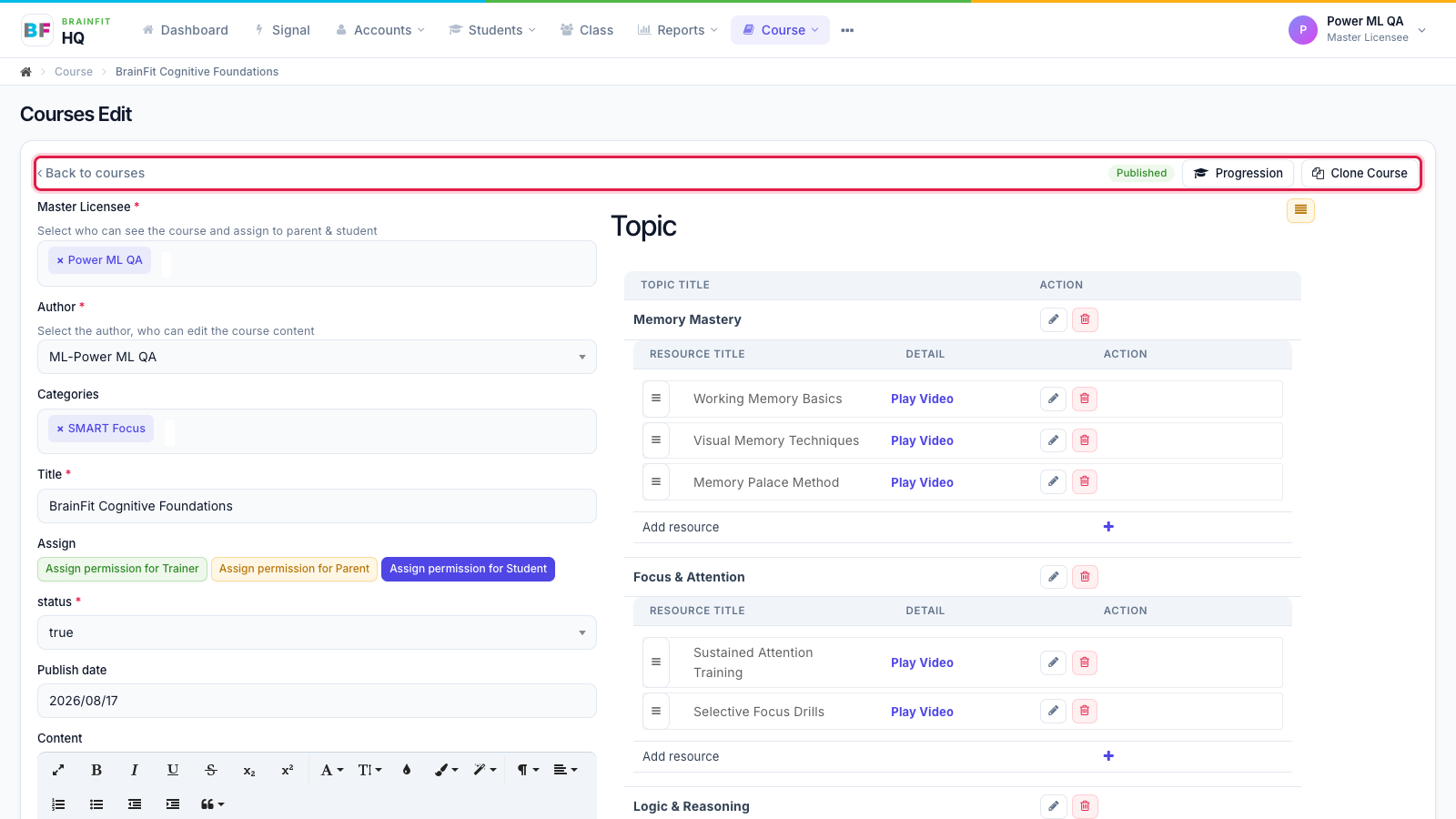
- In Topic: the yellow button sorts the topics; the pencil renames a topic; drag the ≡ handle to reorder resources (or move them to another topic). Click a resource's pencil to edit it, or the red button to remove it. Images and PDFs open in a preview pop-up; Play Video plays a video.
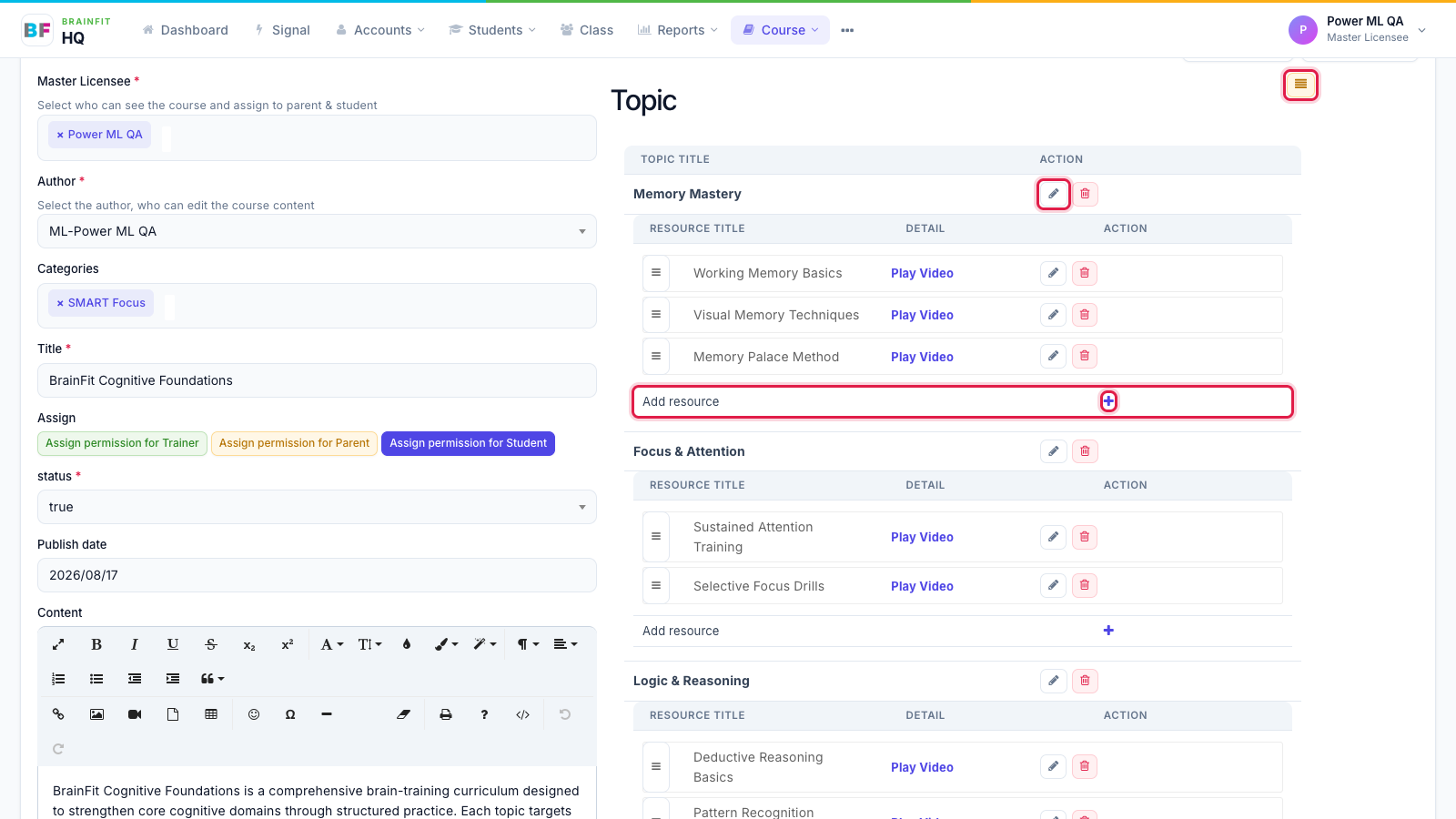
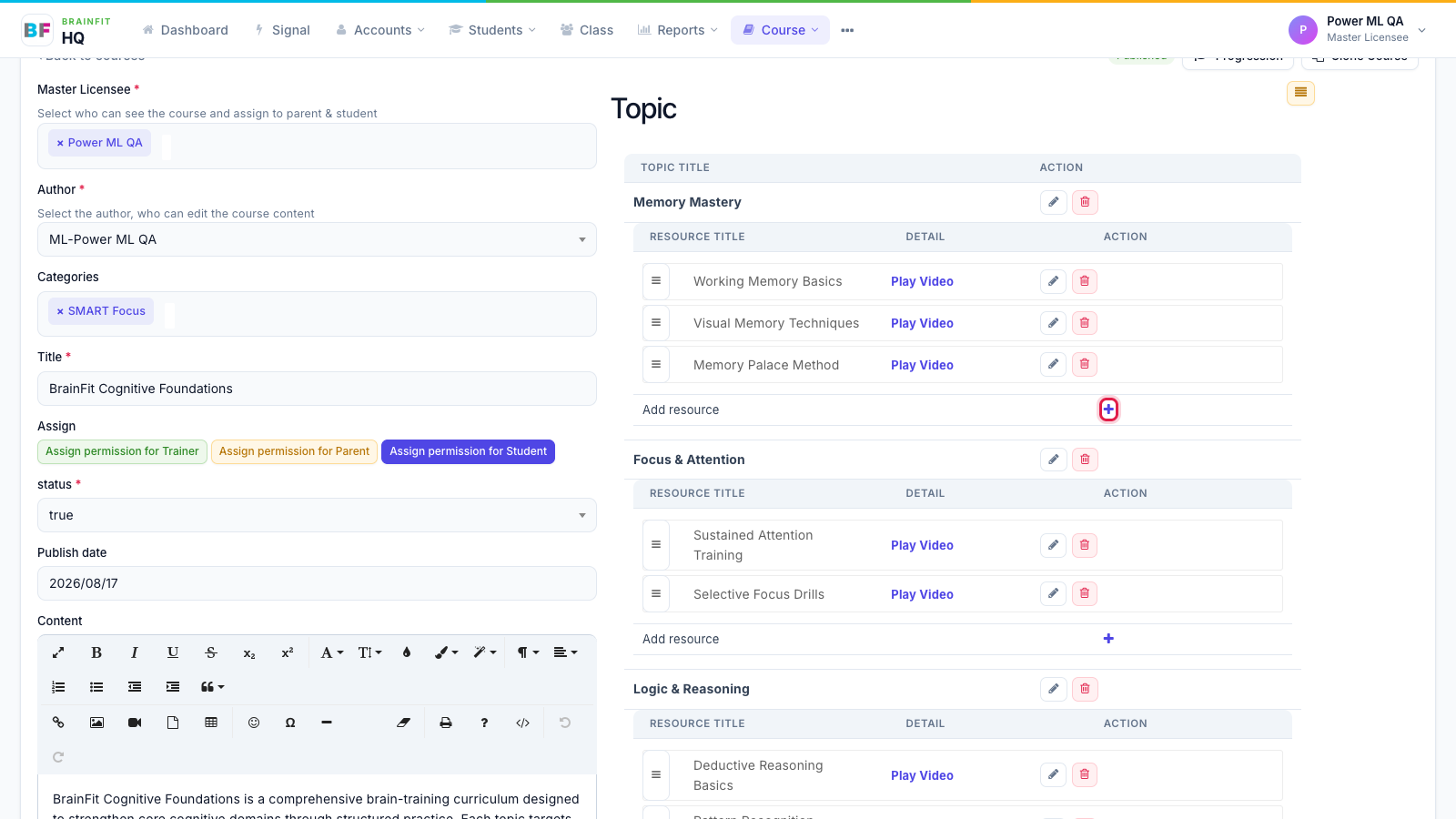
- To add a resource, click + on the Add resource row of the topic.
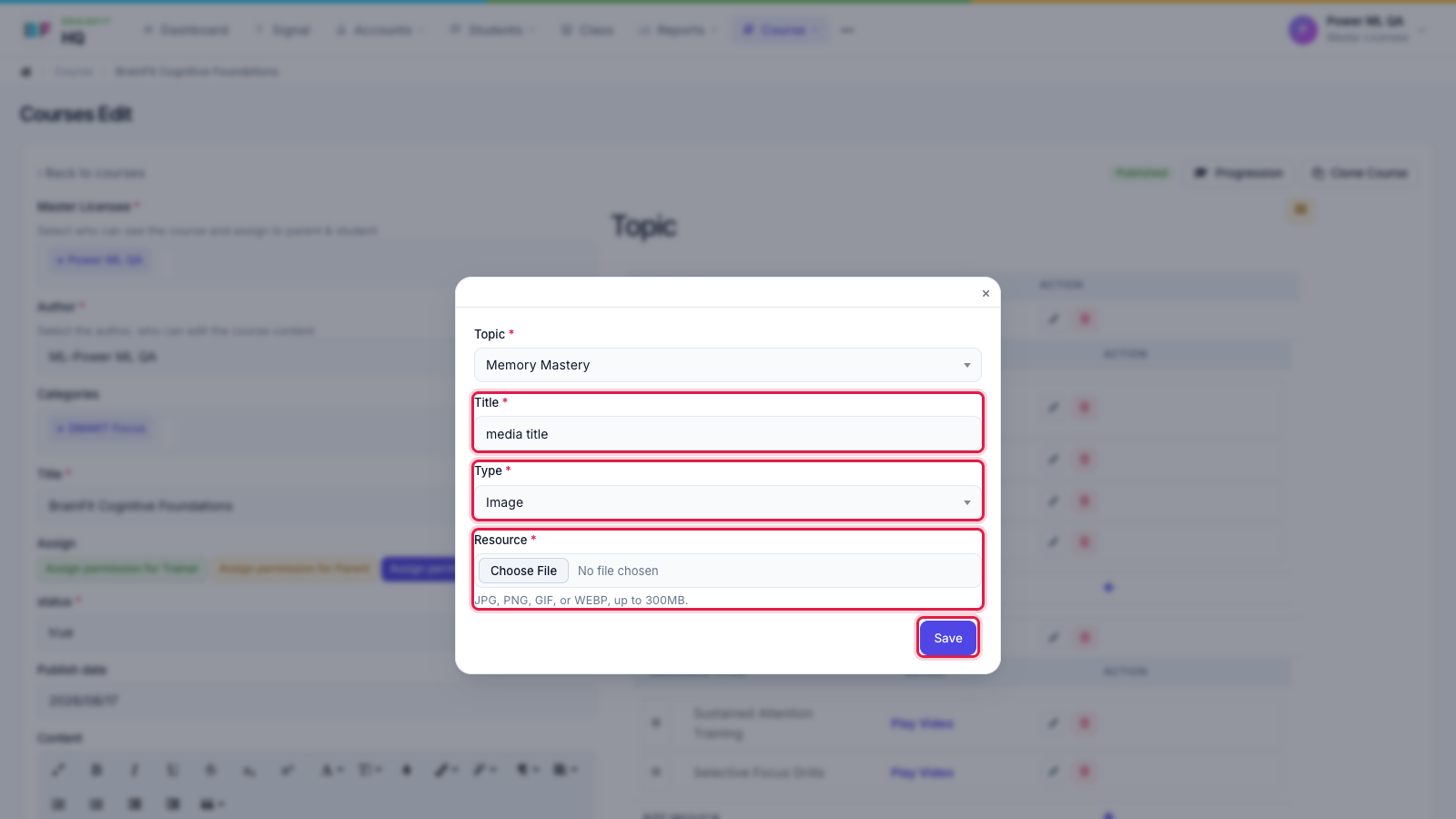
- Fill in Title, choose the Type (video, image, document, link or quiz) and upload the file (or paste the link / pick the quiz), then click Save.
caution
Clicking + creates the new resource straight away (named media title). If you close the pop-up without saving, delete that empty resource with its red button.